Last updated: 8 October 2026. MoreLess
Every screenshot below was recorded on 5 October 2026 on an IQ Option Practice account registered in Brazil, in the English interface (site version 4110.3.60). We only opened the settings pages and changed nothing; no money was paid and the account menu was not opened. Settings can change between versions.
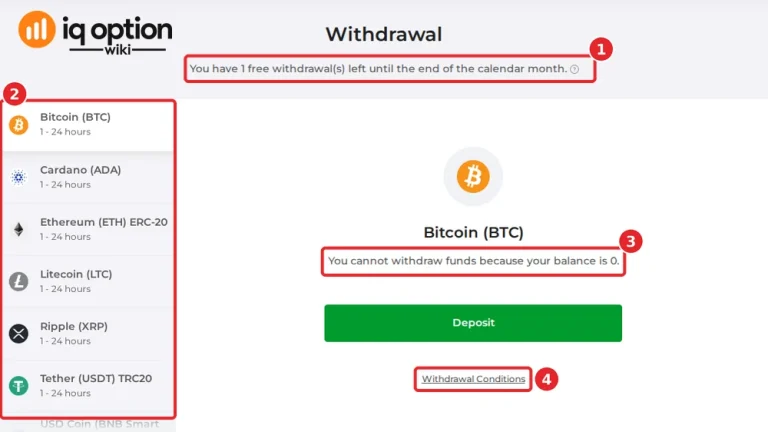
IQ Option keeps its platform settings behind the gear icon at the bottom right of the traderoom. The Settings page has six sections: Appearance, Trading, Keyboard shortcuts, Notifications, Privacy and Account settings. This guide walks through them in that order with numbered screenshots. For the traderoom itself, the sidebar, chart tools and trading panel, see the IQ Option interface guide.
Quick answer
- Where: the gear at the bottom right of the traderoom opens Settings.
- Six sections: Appearance, Trading, Keyboard shortcuts, Notifications, Privacy, Account settings.
- Appearance: time zone, interface language, four themes, scale 80% to 120%, Customize Menu and what the chart shows.
- Trading: Simple mode (isolated margin) or Advanced mode (cross margin), and confirmation windows for opening and closing positions.
- Privacy: Use Real Name is unticked by default on our account; a generated public name is shown in chats, tournaments and the leaderboard.
- Account settings: temporary closing, deletion of the account and personal data, and access to your data.
What the platform runs on
IQ Option’s download page offers an Android app (an .apk file of 51.3 MB), the iOS app from the App Store, macOS installers (.dmg, for Apple chip and for Intel chip) and Windows installers (.msi, 64-bit and 32-bit). It lists Windows 7, 8, 8.1 and 10 and macOS 10.14 Mojave, 2 GB of RAM (4 GB recommended) and 130 MB of disk space for the desktop version, and iOS 15 or later and Android 8.1 or later for the apps. The web platform runs in the browser and is the version recorded here. See the mobile app guide for the apps.
IQ Option Platform Settings: step by step
Step 1: Open Settings
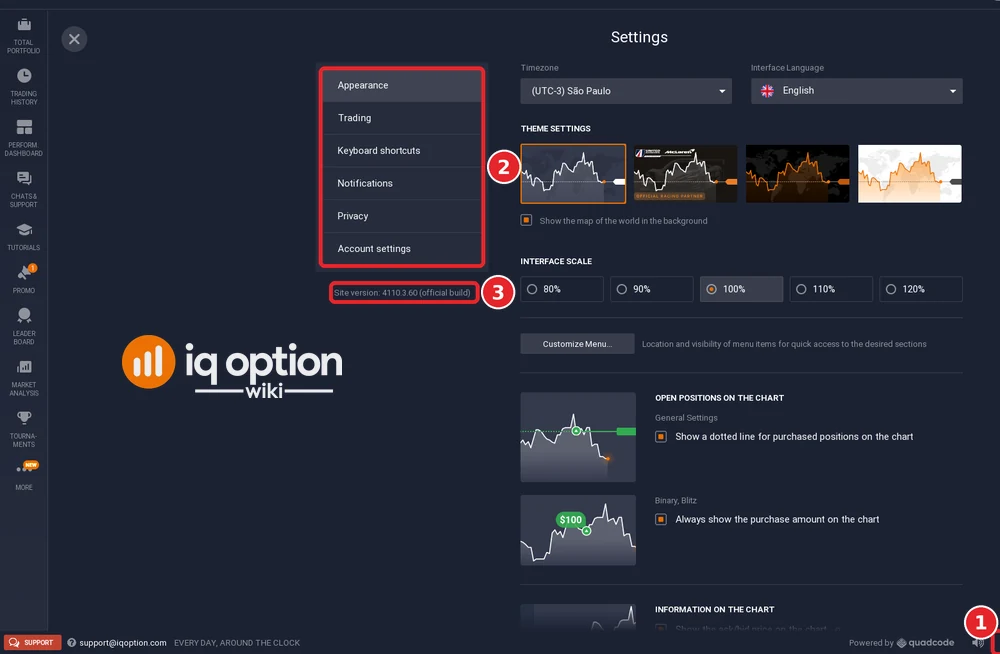
Click the gear at the bottom right of the footer (1). The Settings page lists its sections on the left (2); the site version is printed under the list (3), 4110.3.60 on our screen. IQ Option’s Help gives the same route for the time zone: the gear icon at the bottom right of the traderoom.
Step 2: Appearance, time zone, language, theme and scale
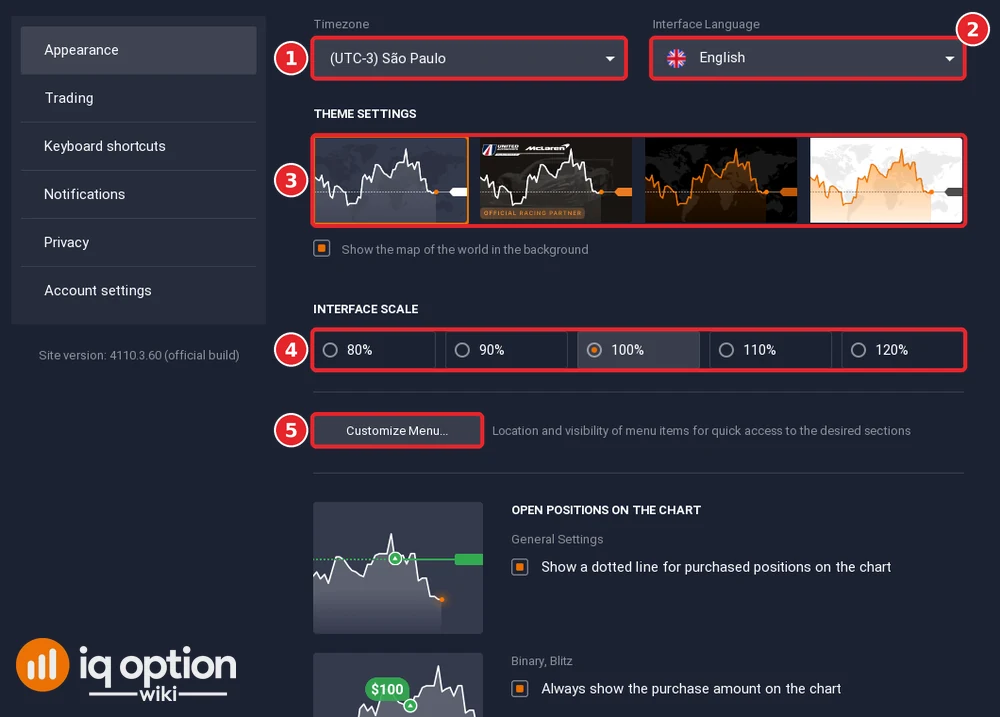
Appearance opens first. At the top are the Timezone (1) and the Interface Language (2). Under “Theme settings” there are four themes (3); one carries an “Official Racing Partner” label, and a tick box below them shows or hides the world map in the background. “Interface scale” (4) offers 80%, 90%, 100%, 110% and 120%; ours was 100%. The Customize Menu button (5) sets which sidebar items show; the interface guide shows that list. The time zone also sets the clock in the footer; see the best time to trade.
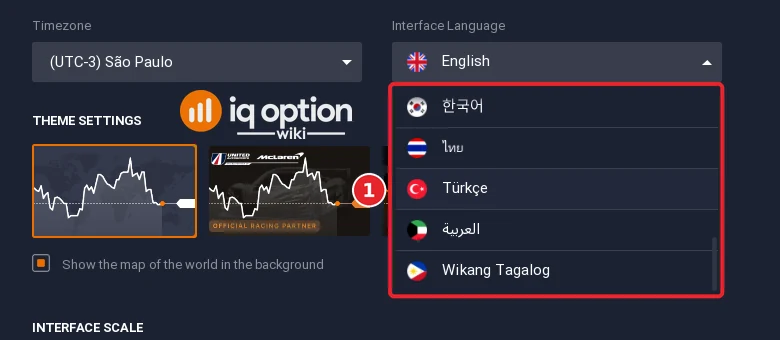
Step 3: Change the interface language
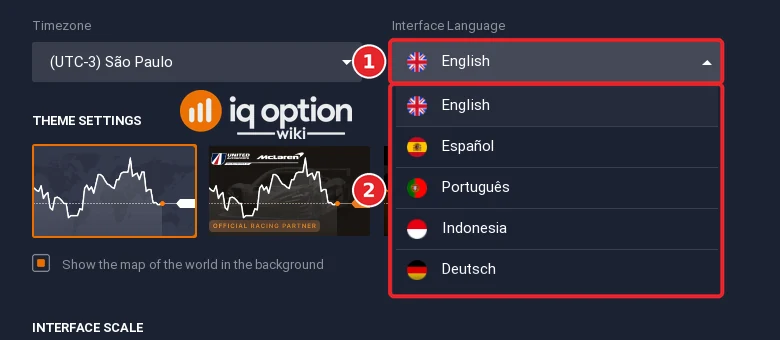
Click the Interface Language field (1). The list (2) starts with English, Español, Português, Indonesia and Deutsch and scrolls on.
At the end of the list we saw 한국어, ไทย, Türkçe, العربية and Wikang Tagalog (1). The language stayed English in our recording.
Step 4: Choose what the chart shows
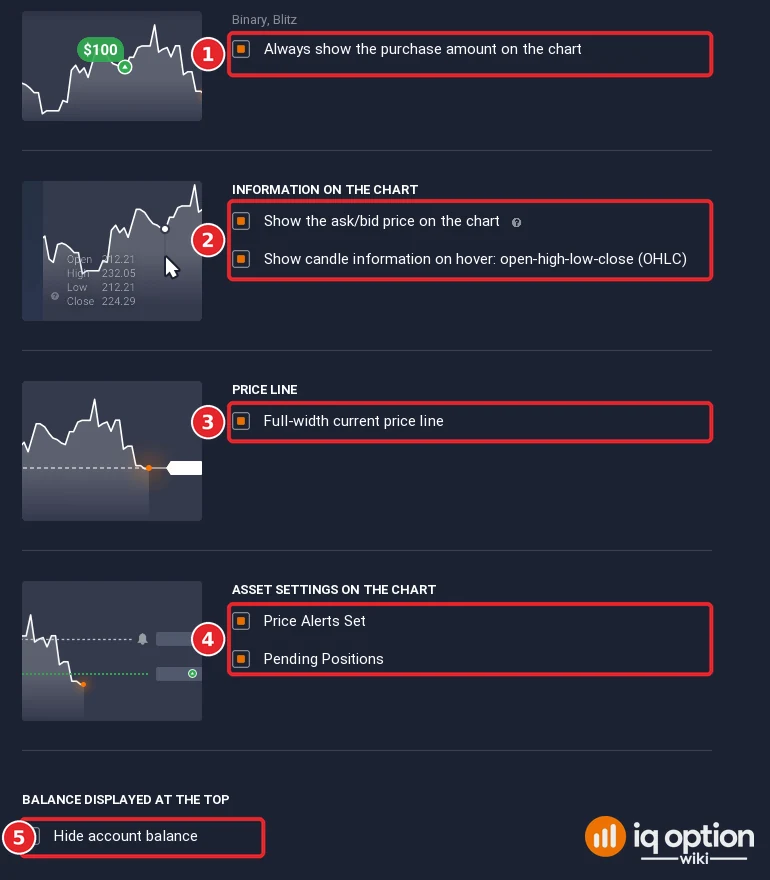
Scrolling down in Appearance leads to the chart options, each with a tick box. “Open positions on the chart” has a dotted line for purchased positions and, for Binary and Blitz, “Always show the purchase amount on the chart” (1). “Information on the chart” has “Show the ask/bid price on the chart” and “Show candle information on hover: open-high-low-close (OHLC)” (2). “Price line” has “Full-width current price line” (3). “Asset settings on the chart” has “Price Alerts Set” and “Pending Positions” (4); see price alerts and pending orders. At the end, “Balance displayed at the top” has “Hide account balance” (5), which was unticked.
Step 5: Trading settings
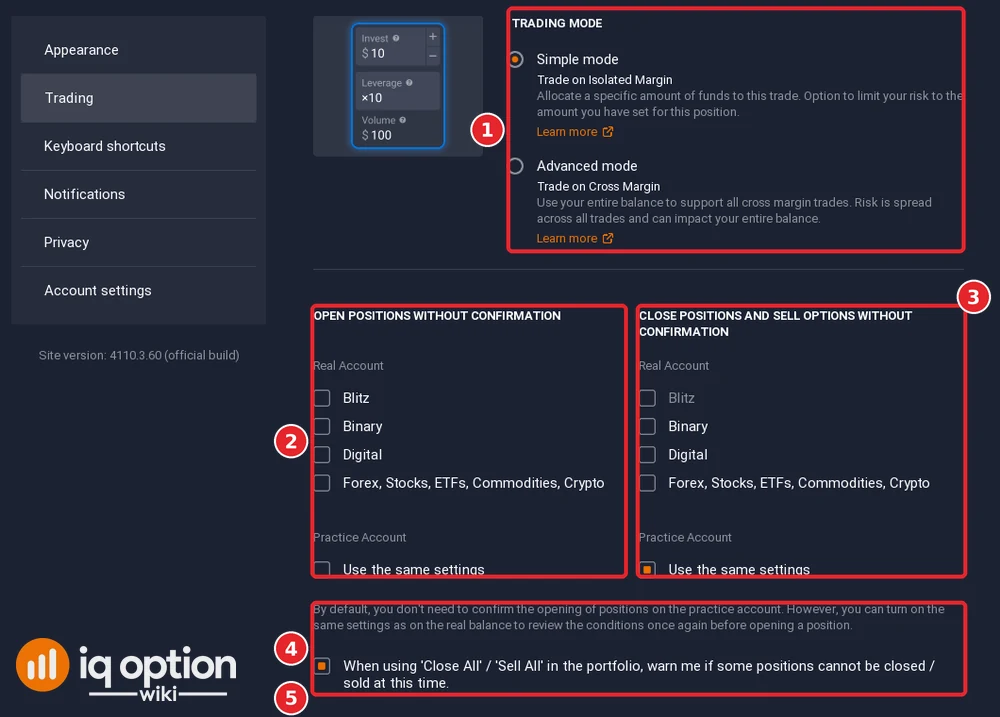
Click Trading. “Trading mode” (1) has two choices. Simple mode is described as “Trade on Isolated Margin”: you allocate a specific amount to the trade and can limit your risk to the amount you set for that position. Advanced mode is “Trade on Cross Margin”: it uses your entire balance to support all cross margin trades, spreads the risk across all trades and “can impact your entire balance”. Simple mode was selected on our account; its preview shows Invest, Leverage and Volume.
Below, two columns list the products for which positions are opened (2) or closed and options sold (3) without a confirmation window: Blitz, Binary, Digital and “Forex, Stocks, ETFs, Commodities, Crypto”. All real-account boxes were unticked. For the Practice account (4), IQ Option states that by default you do not need to confirm opening positions, and that you can turn on the real-balance settings to review the conditions again; below it is a warning option for “Close All” and “Sell All”. A “Rollover options without confirmation” row for Blitz (5) follows. For the margin rules behind the two modes see auto-closing.
Step 6: Keyboard shortcuts
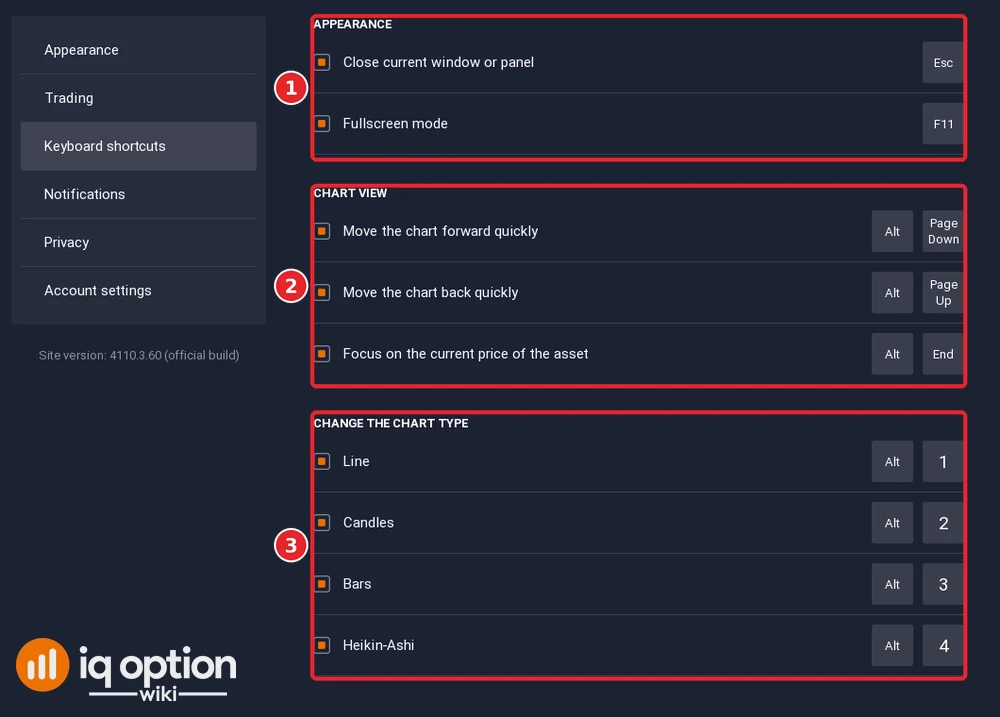
Click Keyboard shortcuts. The page groups the shortcuts into Appearance (1), Chart view (2) and Change the chart type (3). Each row has a tick box.
| Group | Action | Keys |
|---|---|---|
| Appearance | Close current window or panel | Esc |
| Appearance | Fullscreen mode | F11 |
| Chart view | Move the chart forward quickly | Alt + Page Down |
| Chart view | Move the chart back quickly | Alt + Page Up |
| Chart view | Focus on the current price of the asset | Alt + End |
| Change the chart type | Line, Candles, Bars, Heikin-Ashi | Alt + 1, 2, 3, 4 |
Step 7: Notifications
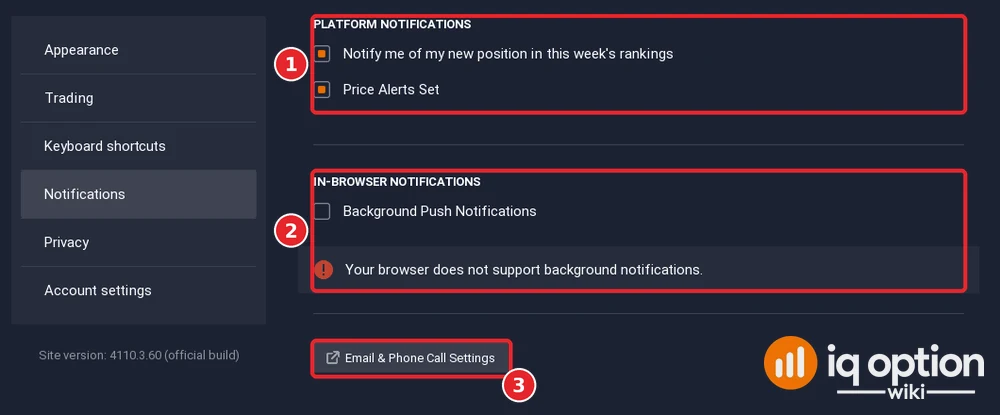
Click Notifications. “Platform notifications” (1) has “Notify me of my new position in this week’s rankings” and “Price Alerts Set”, both ticked on our account. “In-browser notifications” (2) has “Background Push Notifications”, unticked, with the message “Your browser does not support background notifications” in our recording browser. The “Email & Phone Call Settings” button (3) opens a page outside the traderoom; we did not open it.
Step 8: Privacy
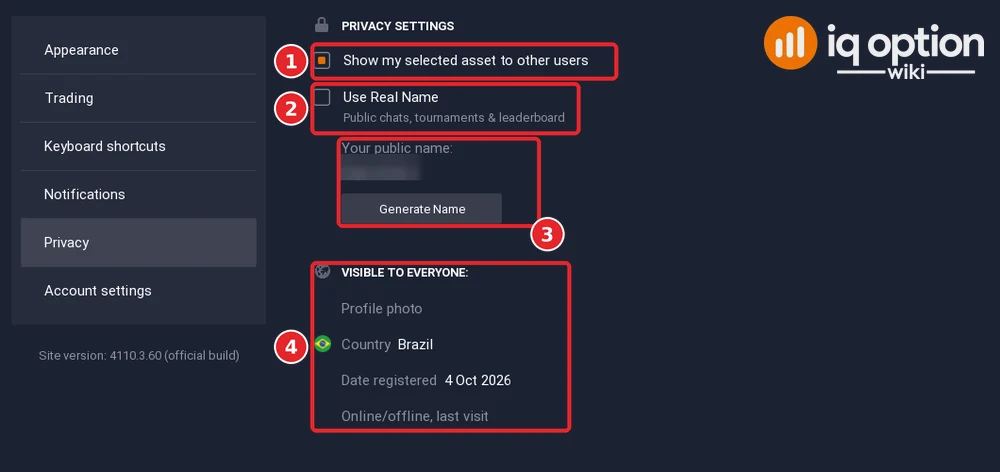
Click Privacy. “Show my selected asset to other users” (1) was ticked. “Use Real Name” (2) applies to public chats, tournaments and the leaderboard and was unticked; below it is the public name (3), which the “Generate Name” button changes (we blurred ours). “Visible to everyone” (4) lists the profile photo, the country, the date registered and online or offline status with the last visit. IQ Option’s Help says the same: generate a random name in your profile if you do not want your real name visible in chats. See the leaderboard guide for where the name appears.
Step 9: Account settings
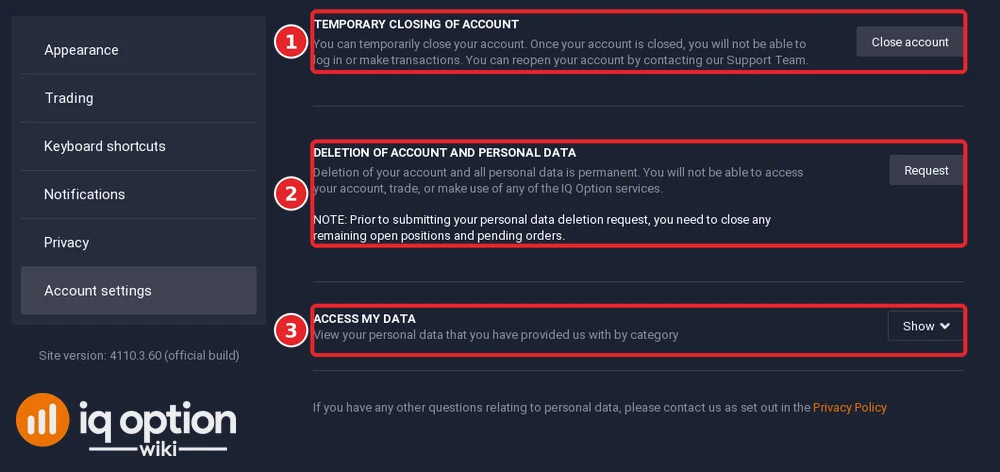
Click Account settings. Three blocks (1 to 3) appear, and we pressed none of their buttons. “Temporary closing of account” (1) says that once the account is closed you cannot log in or make transactions, and that you can reopen it by contacting the Support Team. “Deletion of account and personal data” (2) says deletion is permanent and that open positions and pending orders must be closed before you submit the request. “Access my data” (3) shows the personal data you gave IQ Option, by category. A link points to the Privacy Policy. To reach support, see how to contact IQ Option support.
Switching accounts and topping up the Practice account
These are not under Settings. IQ Option’s Help says to click your balance in the upper-right corner of the traderoom: the panel lists your real account and your practice account, and a click makes one active. It also says you can top up the practice account for free if its balance drops below $10,000, using the green Deposit button with two arrows and choosing the practice account in the window that opens. We did not press it. See the interface guide for the balance menu.
Frequently Asked Questions
Q: Where are the IQ Option settings?
A: Click the gear at the bottom right of the traderoom. The sections are Appearance, Trading, Keyboard shortcuts, Notifications, Privacy and Account settings.
Q: How do I change the time zone?
A: Settings, Appearance, Timezone. IQ Option’s Help gives the same route. The footer clock follows it.
Q: How do I change the language?
A: Settings, Appearance, Interface Language. The list includes English, Español, Português, Indonesia, Deutsch, 한국어, ไทย, Türkçe, العربية and Wikang Tagalog, among others.
Q: What is the difference between Simple and Advanced trading mode?
A: IQ Option describes Simple mode as trading on isolated margin, with a set amount allocated to the trade, and Advanced mode as cross margin, which uses your entire balance and can affect all of it.
Q: Can I hide my real name from other traders?
A: Yes. In Settings, Privacy, leave “Use Real Name” unticked; the page shows a generated public name and a Generate Name button.
Q: Can I hide my balance?
A: Appearance has a “Hide account balance” tick box under “Balance displayed at the top”.
Q: How do I close or delete my account?
A: Account settings has “Close account” for a temporary closing and a “Request” button for deletion of the account and personal data. Close open positions and pending orders before a deletion request.