Last updated: 8 October 2026. MoreLess
Every screenshot below was recorded on 5 October 2026 on an IQ Option Practice account registered in Brazil, with a EUR/USD Forex chart. Nothing was paid and no trade was needed: an alert only watches a price. We did not wait for the alert to trigger, so this guide shows how to manage alerts, not what the notification looks like.
A price alert tells you when an asset reaches a price you choose, so you do not have to watch the chart. On the IQ Option platform you create it in a small dialog, with a price level and a choice of “Once only” or “Every time”, and you manage it in the Alerts panel. This guide goes through the steps in order: open the panel, create an alert, read the chart line, use the price axis shortcut, check the History tab and the filter, edit an alert and delete it.
Quick answer
- Where: the Alerts panel (MORE, then Alerts in the left sidebar) or the + button on the chart’s price axis.
- Create: enter the price level, choose Once only or Every time, click Done.
- Delivery: the dialog lists Platform window and Push notification, with a General Settings link.
- Manage: the Active tab lists your alerts with an edit (gear) and a delete (trash) button; the History tab keeps past ones.
- Checked: EUR/USD Forex on a Practice account registered in Brazil, 5 October 2026.
How to set a price alert on IQ Option
The numbers in each screenshot match the numbers in the text.
Step 1: Open the Alerts panel
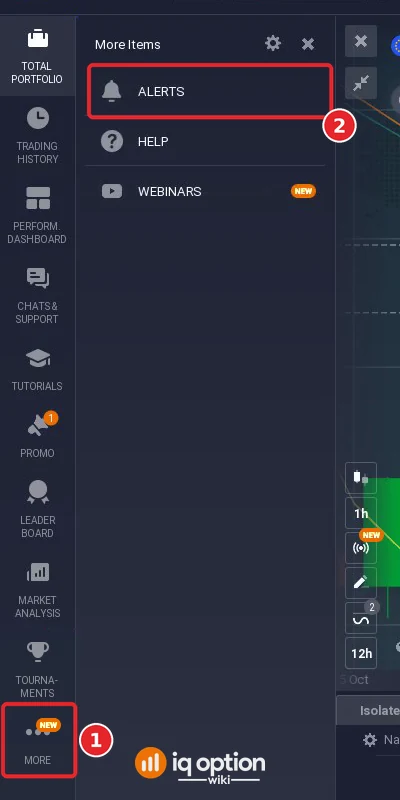
In the left sidebar click MORE (1). The “More Items” list opens with Alerts, Help and Webinars. Click Alerts (2).
Step 2: Read the Alerts panel
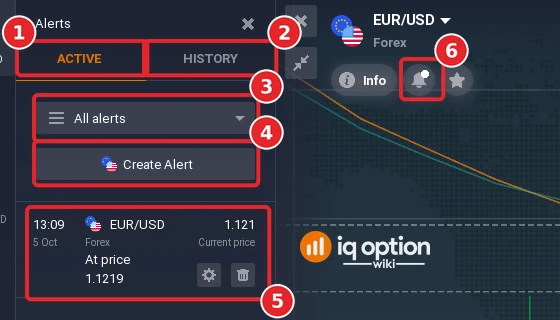
The panel has two tabs: Active (1) and History (2). Under them are a filter (3) that starts on “All alerts” and a Create Alert button (4). Each alert is a row (5) with the time it was created, the asset, “At price” with your level, the current price, and two small buttons: edit (the gear) and delete (the trash). The bell button next to Info and the star above the chart (6) shows a small dot while the asset has an active alert.
Step 3: Create the alert
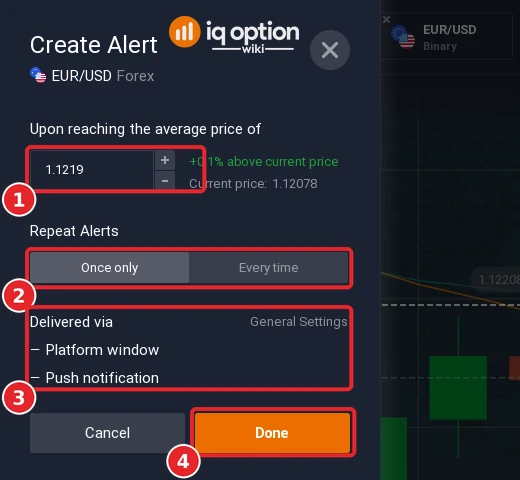
Click Create Alert. The dialog is titled “Create Alert” and names the asset, here EUR/USD Forex. Then:
- Type the level in the field under “Upon reaching the average price of” (1). The dialog shows how far it is from the market: in our test 1.1219 was “+0.1% above current price”, with the current price 1.12078 beside it.
- Under “Repeat Alerts” choose Once only or Every time (2). Once only was selected when the dialog opened.
- Check “Delivered via” (3): it lists “Platform window” and “Push notification”, and a “General Settings” link on the same line.
- Click Done (4). Cancel closes the dialog without creating an alert.
Step 4: Find the alert on the chart
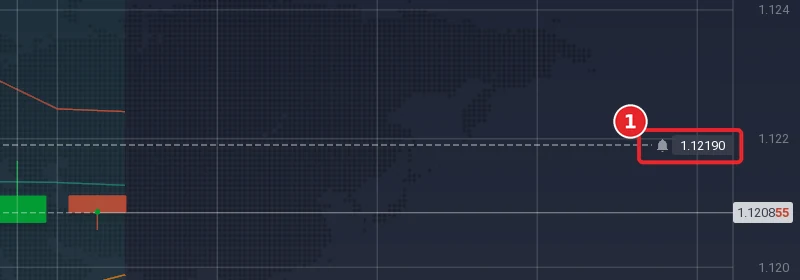
The alert is drawn as a dashed horizontal line across the chart. At the right end, on the price axis, a bell icon sits next to the level (1), here 1.12190, which is the 1.1219 we typed.
Step 5: A second way to start an alert, from the price axis
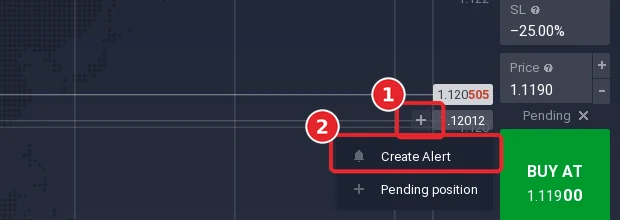
Move the cursor along the price axis at the right of the chart. A + button appears next to the price under the cursor (1). Click it and a small menu offers Create Alert (2) and “Pending position”. The same + button is how you place a pending order, which is a different feature: see pending orders on IQ Option.
Step 6: Use the History tab and the filter
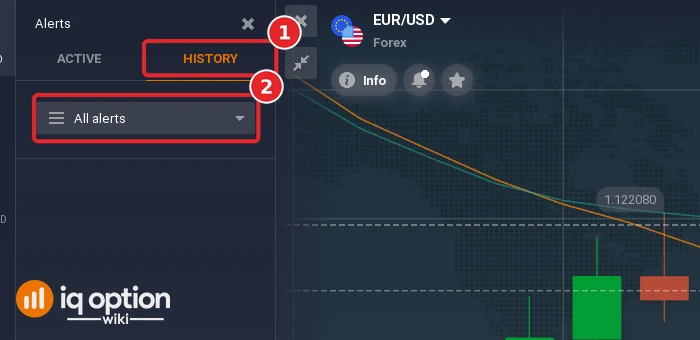
Open the History tab (1) for past alerts. It was empty in our test, because our alert had not been reached. The filter (2) is shared by both tabs.
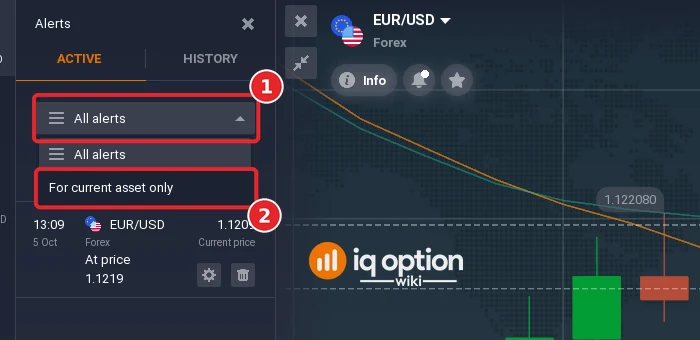
Open the filter (1) and choose between “All alerts” and For current asset only (2), which narrows the list to the asset on the chart.
Step 7: Edit an alert
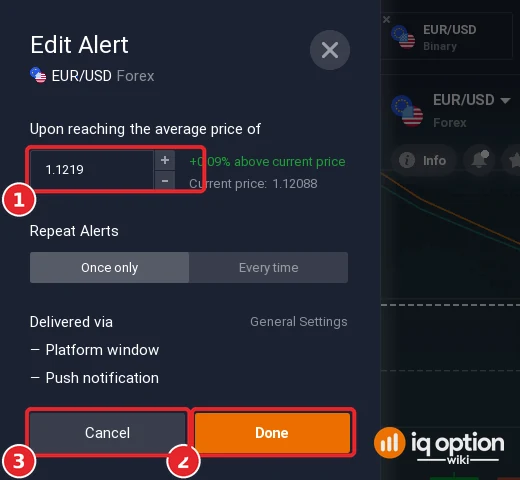
In the Active tab click the gear on the alert row. The “Edit Alert” dialog has the same fields as the Create dialog. Change the level (1), then click Done (2), or Cancel (3) to keep the alert as it was. We cancelled, so our alert stayed at 1.1219.
Step 8: Delete an alert
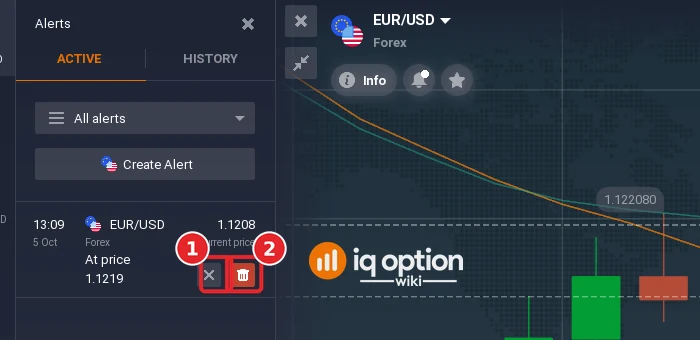
Click the trash button on the alert row. The row then shows a cross and a red trash button: click the red trash button (2) to confirm, or the cross (1) to back out.
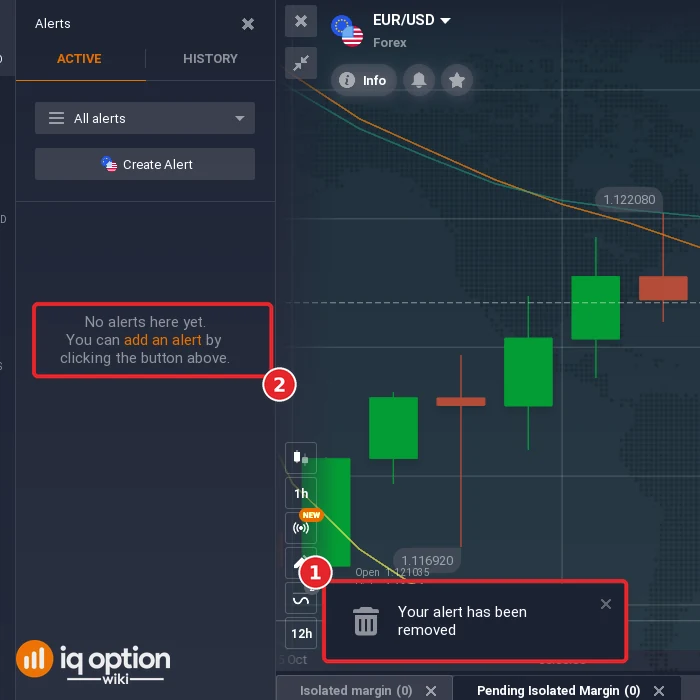
The platform shows “Your alert has been removed” (1) and the list reads “No alerts here yet. You can add an alert by clicking the button above.” (2)
Troubleshooting
- You cannot find Alerts: it is under MORE at the bottom of the sidebar, not in the top bar.
- The list looks empty: check the filter. “For current asset only” hides alerts on other assets.
- No notification arrives: read “Delivered via” in the dialog and open General Settings from it. We did not test the notification itself or the phone app.
- An alert you expected is missing from Active: look in the History tab, and check which repeat option you chose (Once only is pre-selected).
Related guides
Frequently Asked Questions
Q: How do I set a price alert on IQ Option?
A: Open MORE, then Alerts, click Create Alert, enter the price, choose Once only or Every time and click Done. You can also click the + button on the chart’s price axis and choose Create Alert.
Q: What is the difference between Once only and Every time?
A: They are the two choices under “Repeat Alerts” in the dialog. Once only was the pre-selected option; Every time is the repeating option.
Q: How do I change or delete a price alert?
A: In the Alerts panel, click the gear on the alert to edit it, or the trash button and then the red trash button to delete it.
Q: How will I be told that the price was reached?
A: The dialog lists “Platform window” and “Push notification” under “Delivered via”, with a link to General Settings. We did not wait for an alert to trigger, so we have not seen the notification.
Q: Can I see only the alerts of the asset I am on?
A: Yes. The filter at the top of the Alerts panel has “All alerts” and “For current asset only”.
Q: Do I need a real-money account for alerts?
A: We created, edited and deleted our alert on a Practice account, with no deposit.