Last updated: 8 October 2026. MoreLess
The screenshots were recorded on 4 and 5 October 2026 on an IQ Option Practice account registered in Brazil (the Bollinger Bands dialog on 4 October, the rest on 5 October). We saved, applied and deleted test templates on the Practice balance; nothing was paid, and no setup shown here is a trading signal.
A chart template on IQ Option is a saved set of indicators, with their settings, that you can put back on a chart in two clicks. Instead of adding and configuring each indicator again, you build the set once, give it a name and apply it whenever you need it. This guide shows each step on the current platform, including how to check what a template holds and how to rename or delete it.
Quick answer
- What it is: a saved set of indicators with their settings. The platform’s note says you can “save your multi-indicator presets to quickly apply them to any chart later”.
- Where: the indicators button in the chart’s tool column opens CHART ANALYSIS, with the tabs Indicators, Templates, Widgets and Scripts.
- Save: add your indicators, click Save Indicator Template, type a name and click Save.
- Use: open the Templates tab and click the template’s name. Hover over it to see its indicators and settings.
- Manage: the gear next to a template offers Rename and Delete.
- Practice: we built, applied and deleted our test templates on a Practice account.
Choosing the indicators for your IQ Option chart templates
Pick an asset and open its chart first. The numbers in each screenshot match the numbers in the text.
Step 1: Open Chart Analysis
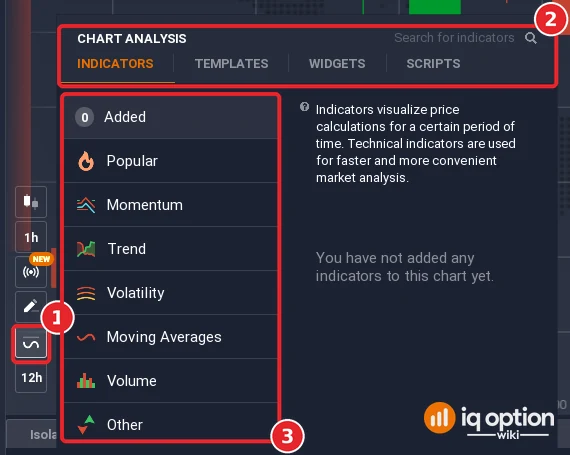
Click the indicators button in the tool column at the bottom left of the chart (1). The CHART ANALYSIS panel opens with four tabs (2): Indicators, Templates, Widgets and Scripts. The Indicators tab has a search box (“Search for indicators”) and the categories (3): Added (with a count of what is on the chart), Popular, Momentum, Trend, Volatility, Moving Averages, Volume and Other. On our chart nothing was added yet, so the count showed 0 and the panel said “You have not added any indicators to this chart yet.”
Step 2: Add the indicators
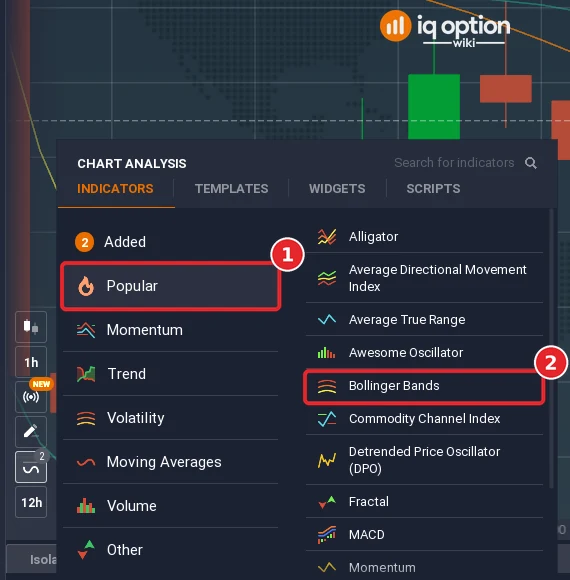
Choose a category (1) and click an indicator in the list (2). We used Popular and Bollinger Bands. The category list opens when you hover over it, so move the pointer straight across to the right-hand list; if you drift over another category, the list switches to it.
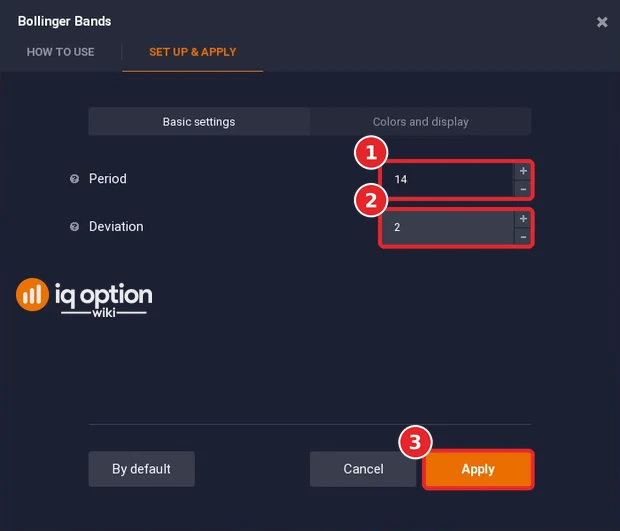
Each indicator opens a dialog with the tabs “How to use” and “Set up & apply”. Under “Basic settings” Bollinger Bands started at Period 14 (1) and Deviation 2 (2); “Colors and display” holds the look. Click Apply (3) to put it on the chart; Cancel closes the dialog and “By default” restores the starting values.
We added Bollinger Bands (14, 2) and Keltner Channels (20, 5, EMA) the same way. Combine whatever your own method needs: moving averages, MACD, Parabolic SAR or others from the lists. A template does not make an indicator more reliable; it only saves the setup time.
Creating a template
Step 3: Open the Added list
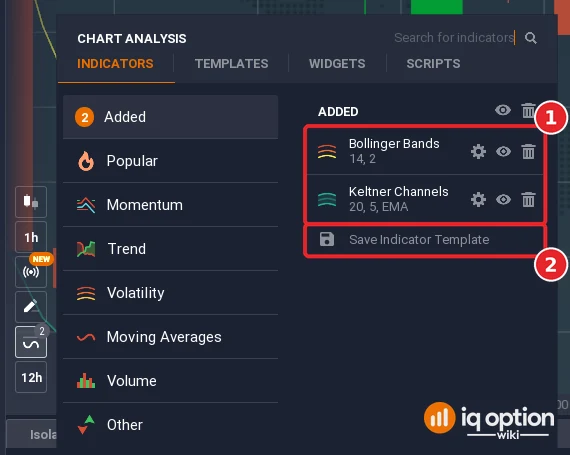
The Added category lists every indicator now on the chart with its settings (1): “Bollinger Bands 14, 2” and “Keltner Channels 20, 5, EMA” in our case. Each row has a gear for settings, an eye to hide it and a bin to remove it. Under the list is Save Indicator Template (2).
Step 4: Name the template and save it
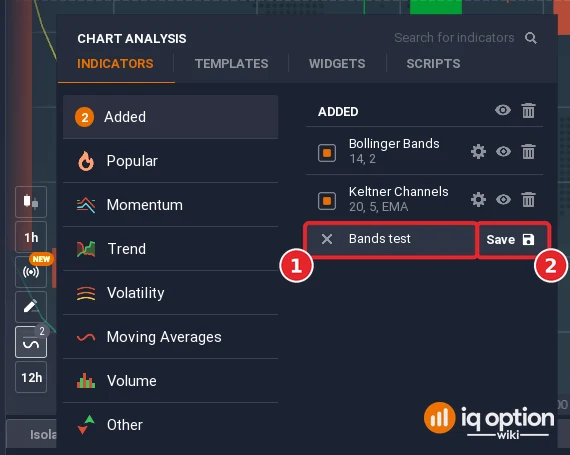
After you click Save Indicator Template, a name field appears (1). Type a name (we used “Bands test”) and click Save (2). The same Save Indicator Template button also sits at the top of the Templates tab.
Step 5: Find it in the Templates tab
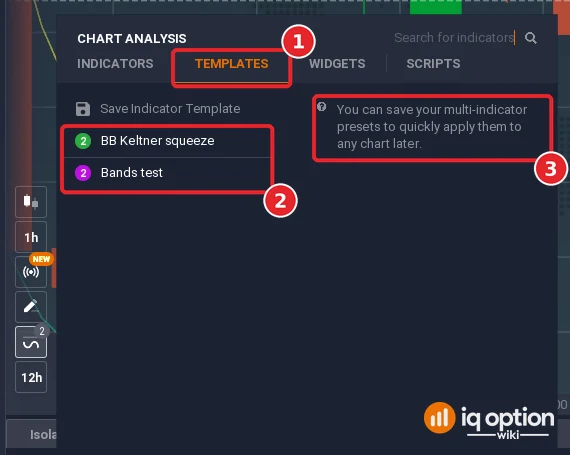
Open the Templates tab (1). Each saved template is listed by name with a number in a coloured circle (2): the number of indicators it holds. Ours showed “BB Keltner squeeze” and “Bands test”, two indicators each. The platform’s note (3) reads: “You can save your multi-indicator presets to quickly apply them to any chart later.”
IQ Option chart templates: apply, check, rename, delete
Step 6: See what a template contains
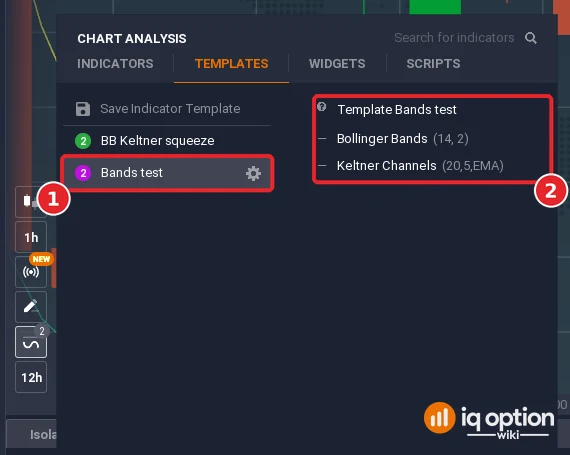
Hover over a template’s name (1). The panel on the right shows “Template” and its name and lists every indicator with its settings (2): for ours, Bollinger Bands (14, 2) and Keltner Channels (20, 5, EMA). With many templates this is the quickest way to tell them apart.
Step 7: Apply it to the chart
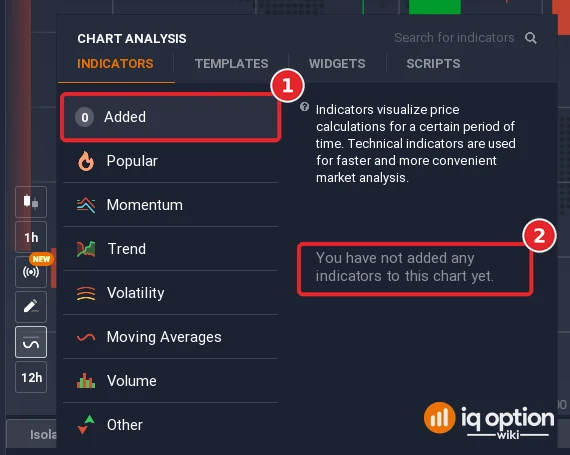
We first removed both indicators with the bin at the top of the Added list, so the chart was clean and Added showed 0 (1) with the message that no indicators were added (2).
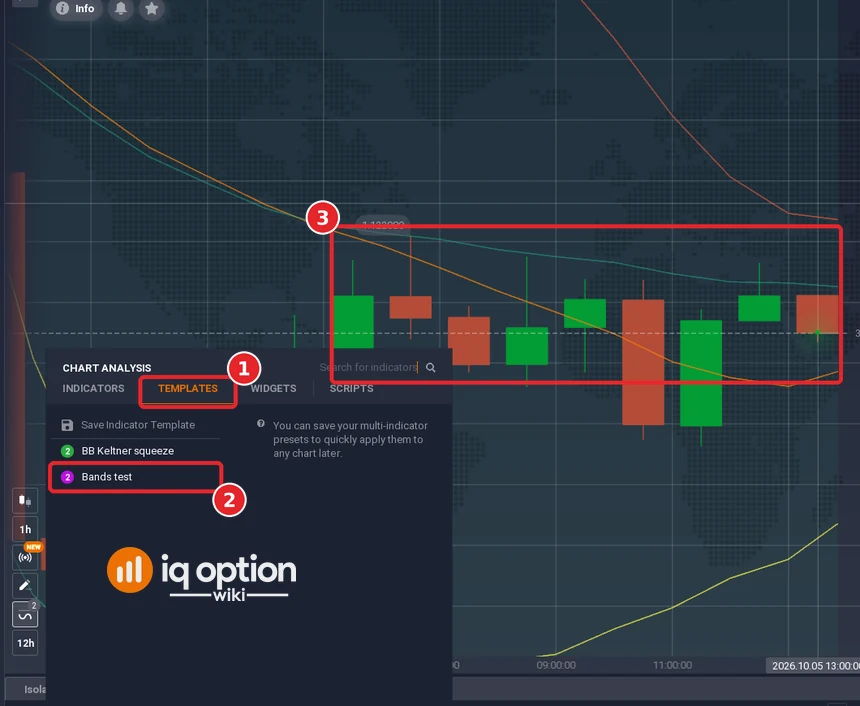
Then we opened the Templates tab (1) and clicked the template’s name (2). Both indicators returned to the chart together (3).
Step 8: Rename or delete a template
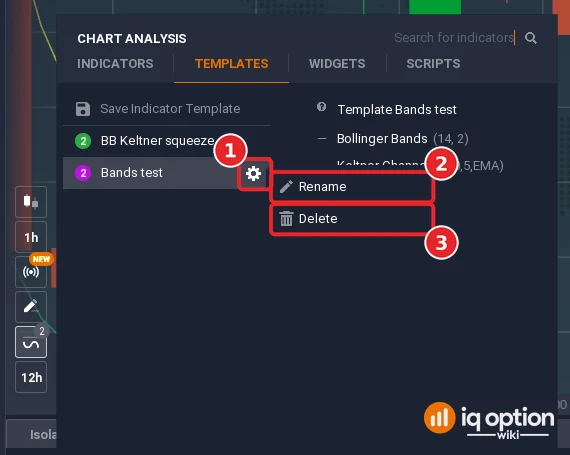
Point at a template and click the gear that appears at the end of its row (1). The menu offers Rename (2) and Delete (3). When we clicked Delete, the template left the list at once; there was no confirmation step, so check the name before you click.
Concluding remarks on IQ Option chart templates
- Name templates by method. A short name that says what is inside, for example the indicators and any non-default period, keeps a long list readable. The hover details in step 6 help when the names are not enough.
- Check the settings after applying. The template stores the indicators with their settings, so look at the chart once to confirm that it shows what you expect on the asset and time frame you are viewing.
- Practise first. The Practice account has the same Chart Analysis panel, so you can build and test templates without risking money.
Related guides: chart types on IQ Option, chart time frames, chart grids and the interface guide.
Frequently Asked Questions
Q: What is a chart template on IQ Option?
A: A saved set of indicators with their settings. The platform describes it as a multi-indicator preset that you can apply to any chart later.
Q: Where do I save a template?
A: In CHART ANALYSIS, either from the Added list on the Indicators tab or from the top of the Templates tab: click Save Indicator Template, type a name and click Save.
Q: Can I see what is inside a template?
A: Yes. Hover over its name in the Templates tab and the right-hand panel lists its indicators and their settings.
Q: How do I rename or delete a template?
A: Click the gear at the end of the template’s row and choose Rename or Delete. Delete removed the template immediately in our test.
Q: What do the other tabs in Chart Analysis do?
A: The panel has four tabs: Indicators, Templates, Widgets and Scripts. This guide covers Indicators and Templates only.
Q: Can I practise templates without paying?
A: Yes. We built and deleted ours on a Practice account, which uses virtual money.