Last updated: 8 October 2026. MoreLess
We opened IQ Option’s official download page and its Windows and macOS installation guides on that day, from a Brazilian IQ Option account. Our recording computer runs Linux, so we did not run the Windows or macOS installers and the installation steps below are IQ Option’s own. The screenshots show IQ Option’s pages, annotated by us.
To install the IQ Option desktop app, open iqoption.com/en/download and click the installer for your computer: a Windows .msi (64-bit or 32-bit) or a macOS .dmg (Apple chip or Intel chip). The button opens IQ Option’s own installation guide, and the download starts by itself a few seconds later. The platform also runs in a web browser, so the app is optional.
Quick answer
- Where: iqoption.com/en/download, IQ Option’s official page. The installation guide opens when you click an installer.
- Windows: .msi installer, 64-bit or 32-bit. Windows 7, 8, 8.1 or 10.
- macOS: .dmg installer, Apple chip or Intel chip. macOS 10.14 Mojave.
- Computer: 2 GB of RAM (4 GB recommended), 130 Mb of disk space, a video card with DirectX 9 (Windows) or OpenGL 2.0 (macOS).
- Blocked or error: add the installer to your antivirus’s exclusions, or update the video card drivers (IQ Option’s own advice).
How to download and install the IQ Option app on Windows or Mac
Step 1: Open IQ Option’s download page
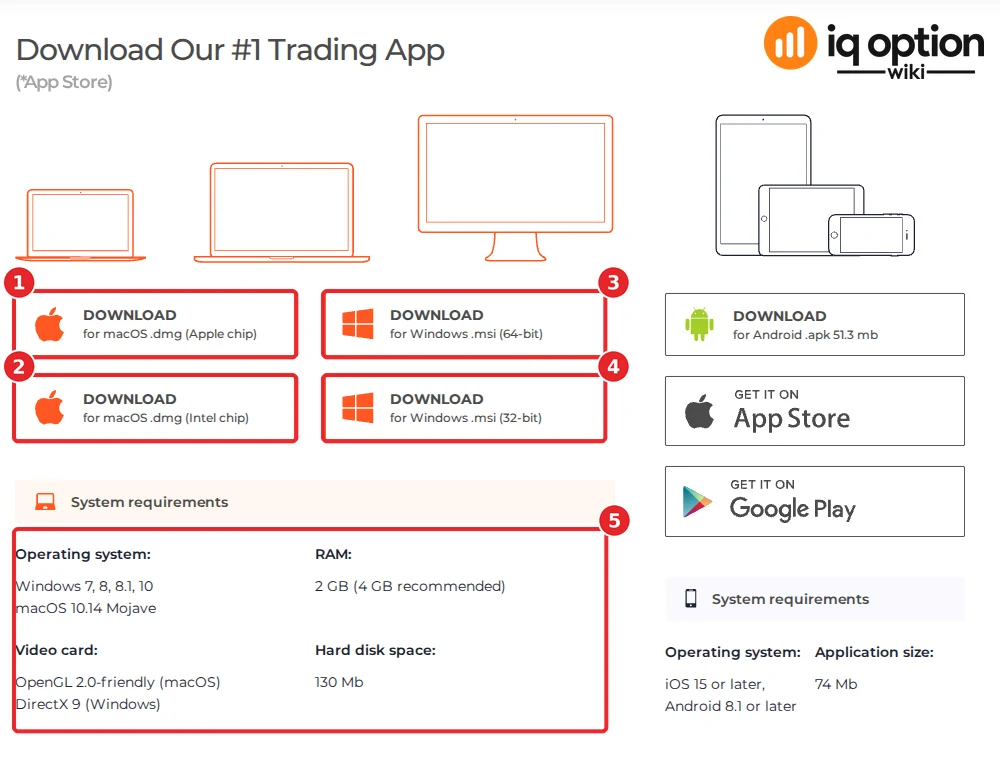
Go to iqoption.com/en/download. The page is titled “Download Our #1 Trading App”. On the left are the four desktop installers (1 to 4) and their system requirements (5); on the right are the Android .apk, the App Store and Google Play. The mobile side is covered in our Android APK guide and mobile app guide.
Step 2: Choose the installer that matches your computer
- macOS with an Apple chip: “DOWNLOAD for macOS .dmg (Apple chip)” (1).
- macOS with an Intel chip: “DOWNLOAD for macOS .dmg (Intel chip)” (2).
- 64-bit Windows: “DOWNLOAD for Windows .msi (64-bit)” (3).
- 32-bit Windows: “DOWNLOAD for Windows .msi (32-bit)” (4).
The page does not say how to tell which one you have: check your computer’s own “About” or “System” screen. A click on a button opens the installation guide for that system, for example iqoption.com/en/install-guide/win?arch=x64, and says: “Your IQ Option installer will start downloading automatically in a few seconds. If this does not happen, restart the download.”
Step 3: Check the system requirements
The requirements box (5 in the image above) lists:
| Item | Requirement on IQ Option’s page |
|---|---|
| Operating system | Windows 7, 8, 8.1, 10; macOS 10.14 Mojave |
| RAM | 2 GB (4 GB recommended) |
| Video card | OpenGL 2.0-friendly (macOS); DirectX 9 (Windows) |
| Hard disk space | 130 Mb |
The Download App menu on IQ Option’s redesigned pages listed different figures when we recorded it on 4 October 2026: a Mac app of 163.3 MB for macOS 12.0 or later. If the two disagree for your computer, trust the requirement next to the button you use, and ask IQ Option support in its chat if you are unsure (see how to contact support).
Step 4: Follow IQ Option’s installation guide
On Windows
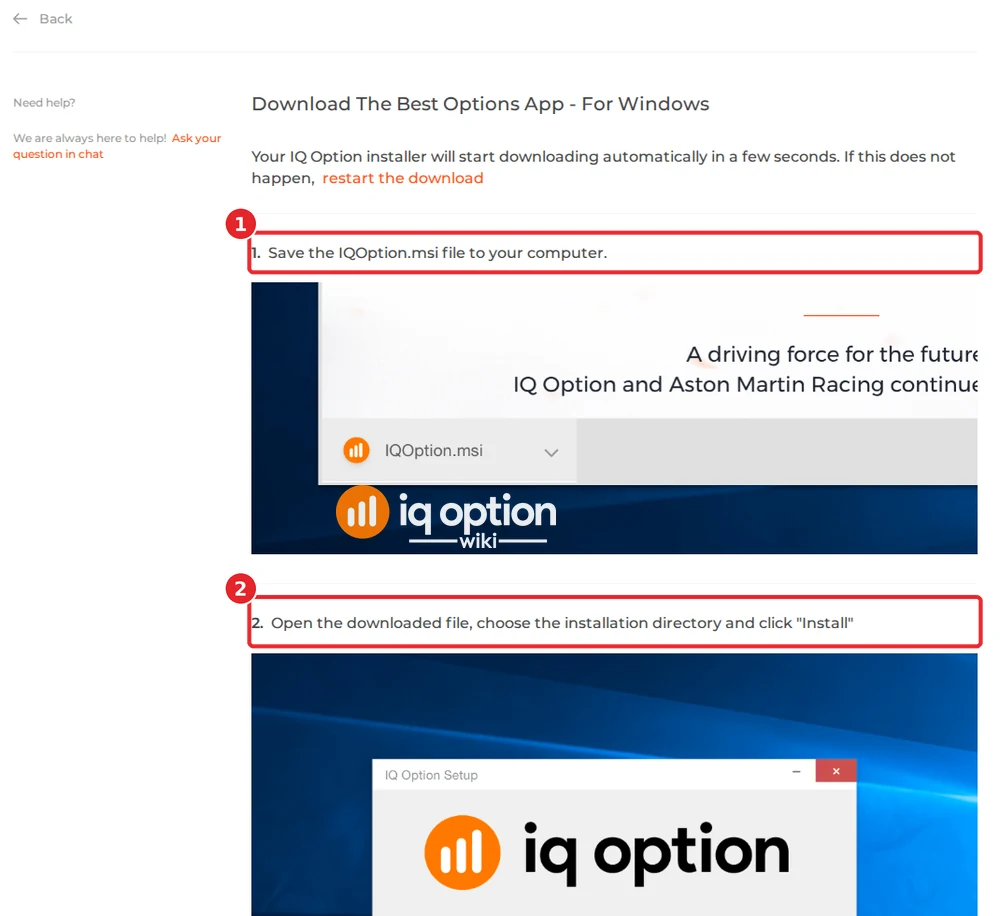
IQ Option’s Windows guide has six numbered steps. Its steps 1 and 2 (the numbers on the image are the guide’s own):
- (1) “Save the IQOption.msi file to your computer.”
- (2) “Open the downloaded file, choose the installation directory and click ‘Install'”.
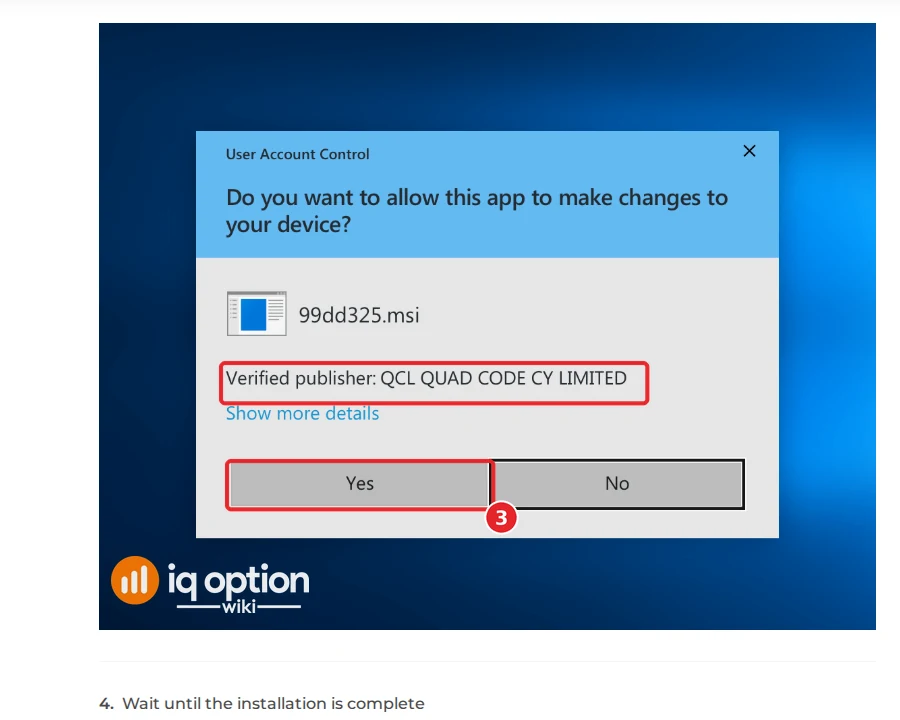
- (3) “Click ‘Yes’ to install the application as an administrator”. The guide’s example of the Windows prompt says “Verified publisher: QCL QUAD CODE CY LIMITED” (the red box without a number). If the prompt on your computer names a different publisher, stop and download the installer again from iqoption.com.
- (4) “Wait until the installation is complete”.
- (5) “Click ‘Finish’ to run the IQ Option installer. You can also launch the application by double-clicking the IQ Option icon on the desktop”.
On macOS
The macOS guide has four steps:
- (1) “Save the IQOption.dmg file to your computer.”
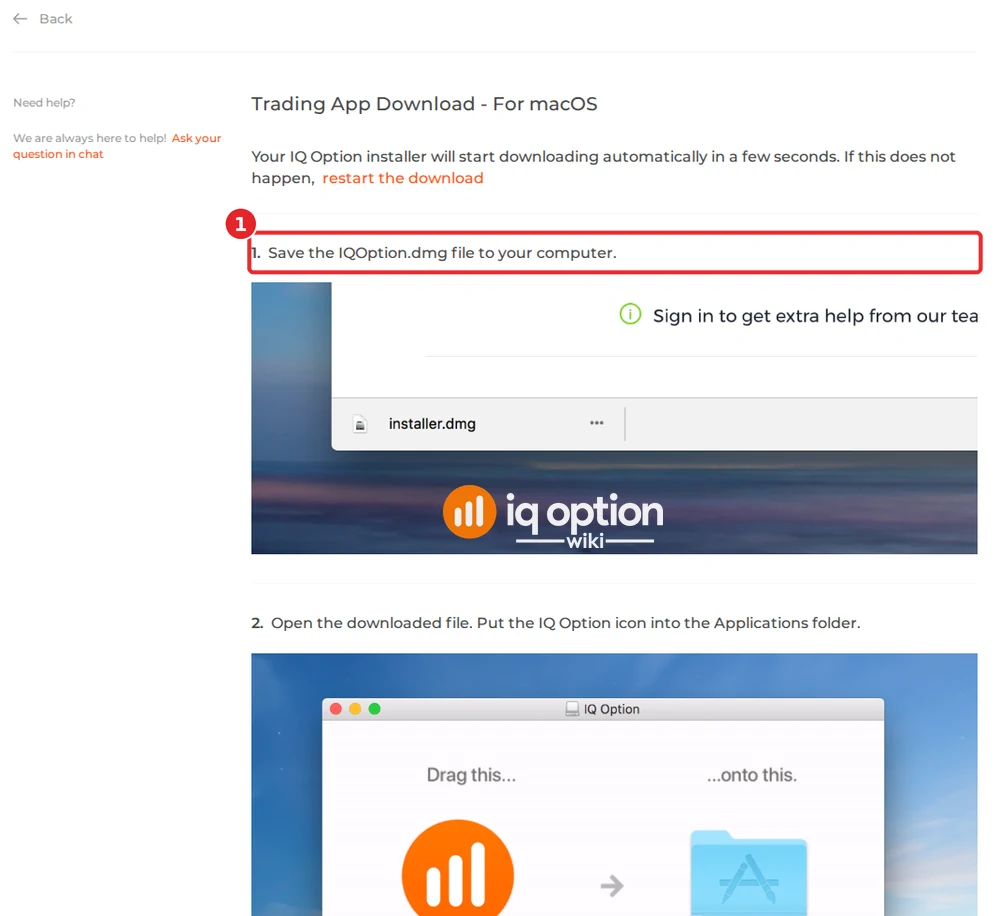
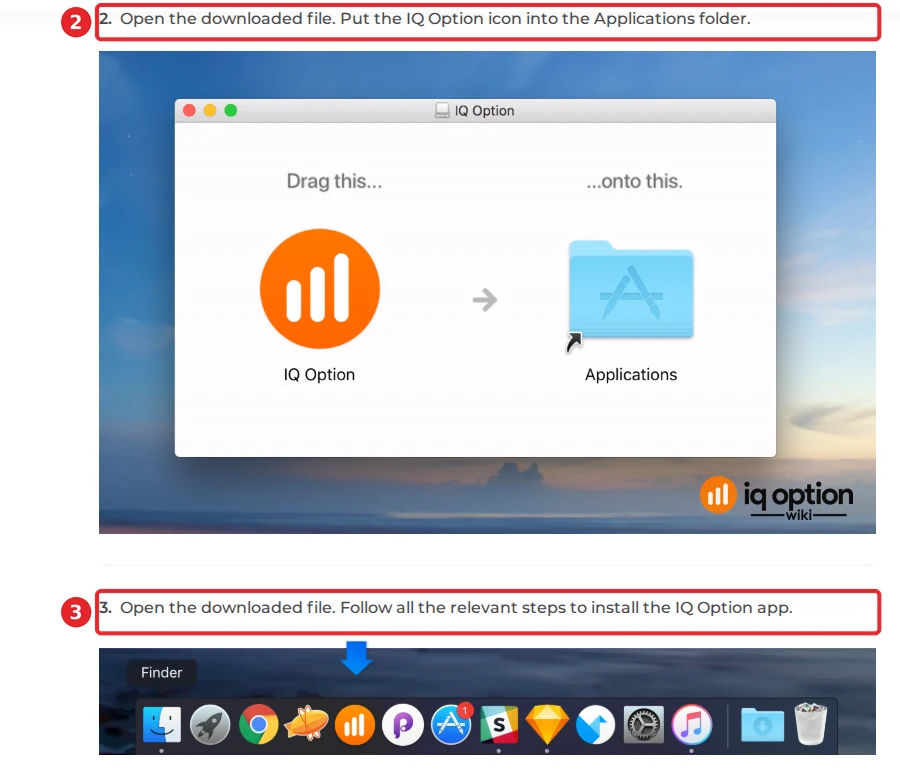
- (2) “Open the downloaded file. Put the IQ Option icon into the Applications folder.”
- (3) “Open the downloaded file. Follow all the relevant steps to install the IQ Option app.” The picture shows the IQ Option icon in the Dock.
Step 5: Log in
The last step of both guides is the same ((6) on Windows, (4) on macOS): “Log in and start trading. If you can’t remember your email or password, use the password recovery option or change the password in your profile.” Use the email and password of your IQ Option account. Without an account, register a Practice account first. If you forgot the password, see how to recover it.
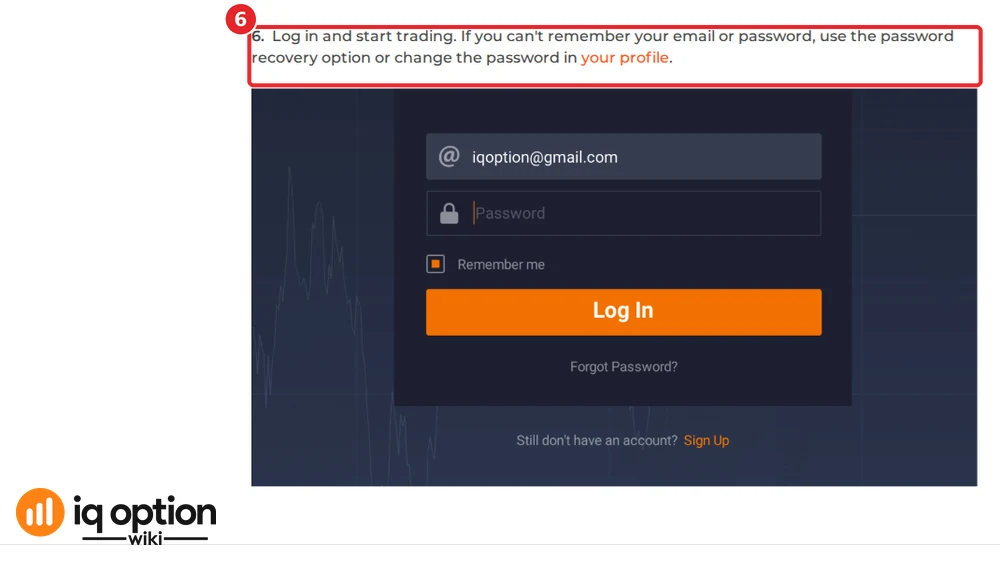
We did not log in to the desktop app, so we cannot say whether it looks or behaves differently from the browser platform shown in our other guides.
If the installer does not start or the app shows an error
IQ Option’s download page lists two known problems under “Problems & Solutions”:
- “My antivirus blocks the installed file.” The page says to update the antivirus installed on your computer and to add the IQ Option installer to the antivirus’s exclusions list.
- “Video driver generates an error (Windows).” If a window asks you to update your video card drivers during installation or when you start the application, the page says your current drivers do not support the OpenGL configuration the application uses. Visit your video card manufacturer’s website, download and install the drivers, and try again. If the problem persists, the page says your video card may not support the required OpenGL configuration.
If the download does not start at all, use the “restart the download” link at the top of the installation guide. Download only from iqoption.com: IQ Option’s Windows guide names its own publisher in the prompt, and a file from another site cannot be checked that way.
Desktop app, browser or phone?
- Browser. Nothing to install: sign in at iqoption.com. All our screenshots and recordings of the platform come from the browser.
- Windows or Mac app. Needs the installer above and meets the requirements in step 3. IQ Option’s download page lists no Linux version.
- Phone or tablet. The same download page lists the App Store, Google Play and an Android .apk (51.3 mb on the page, 8 October 2026). See the mobile app guide.
Related guides
- The IQ Option X APK for Android.
- The IQ Option mobile app.
- How to register a Practice account, if you do not have an account yet.
- How to recover your password.
Frequently Asked Questions
Q: Is there an official IQ Option app for Windows and Mac?
A: Yes. IQ Option’s download page offers a Windows .msi installer (64-bit and 32-bit) and a macOS .dmg installer (Apple chip and Intel chip).
Q: What are the system requirements?
A: On IQ Option’s download page (8 October 2026): Windows 7, 8, 8.1 or 10, or macOS 10.14 Mojave; 2 GB of RAM (4 GB recommended); a video card with OpenGL 2.0 support (macOS) or DirectX 9 (Windows); and 130 Mb of disk space.
Q: Which file do I download?
A: The .msi for Windows (64-bit or 32-bit, to match your Windows) or the .dmg for macOS (Apple chip or Intel chip, to match your Mac).
Q: Why does my antivirus block the installer?
A: IQ Option’s download page says to update the antivirus and to add the IQ Option installer to the exclusions list. If you are not sure the file is the real one, delete it and download it again from iqoption.com.
Q: The installer shows a video driver error. What now?
A: IQ Option’s page says the drivers do not support the OpenGL configuration the app uses. Download current drivers from your video card manufacturer’s website and install them. If the error stays, the video card may not support the required OpenGL configuration.
Q: Is there a version for Linux?
A: IQ Option’s download page does not list one. The platform runs in a web browser on any computer, which is how we recorded our guides.
Q: Do I need a new account for the desktop app?
A: IQ Option’s guides end with “Log in and start trading”, so use your existing account. If you have none, register a Practice account first.
Q: Does the desktop app cost anything?
A: IQ Option’s download page and guides state no price for the app. Trading and deposits have their own costs: see IQ Option fees.