IQ Option Wiki
    • Learning Center
    • Free Trading Course
    • Our Videos
    • FAQ
    • Platform Guide
  • Strategies
    • Technical Indicators
    • Chart Patterns
    • All Free Trading Tools
    • Market Sessions
    • Profit Calculator
    • Trading Checklist
    • Forex Calculator Suite
    • RSI Simulator
    • All Articles
    • Binary Options Encyclopedia
    • Full Sitemap
  1. Home
  2. Account
  3. IQ Option Forgot Password: How to Reset It Step by Step (2026)

IQ Option Forgot Password: How to Reset It Step by Step (2026)

Published: May 31, 2022 By Bart Bregman in Account, Download App 6 minutes read

Contents

  • 1. Quick answer
  • 2. How to reset your IQ Option password, step by step
    • 2.1. Step 1: Open the login page and click “Forgot password?”
    • 2.2. Step 2: Type your email and click Continue
    • 2.3. Step 3: Wait for the confirmation
    • 2.4. Step 4: Open the email and click RESET PASSWORD
    • 2.5. Step 5: Type the new password twice
    • 2.6. Step 6: Check that the password changed
    • 2.7. Step 7: Log in with the new password
  • 3. If the reset does not work
  • 4. Keep the account safe afterwards
  • 5. Related guides
  • 6. Frequently Asked Questions
  • 7. GENERAL RISK WARNING

Last updated: 8 October 2026. We went through the whole recovery on 8 October 2026 on a test account that we had just registered with a temporary mailbox: we asked for the reset, opened IQ Option’s email, set a new password and logged in with it. The screenshots show that run; our email address and the one-time code are hidden.

By Bart Bregman · Updated October 8, 2026 · Reviewed October 9, 2026 by Bart Bregman · How we research and update articles

To recover an IQ Option password, open the login page, click “Forgot password?”, type your email address (the form also says phone), click Continue, open the “Reset your password” email that IQ Option sends, click RESET PASSWORD, type a new password twice and click Confirm. IQ Option then shows “Your password has been successfully changed” and you log in with the new one. It took us a few minutes.

Quick answer

  • Start: iqoption.com/en/login, then “Forgot password?” below the Log in button.
  • You need: the email address of your account. The form is labelled “Email or phone”; we tested an email only.
  • Email: “Reset your password” from noreply@iqoption.com, with a RESET PASSWORD button. It arrived within a minute.
  • Then: type the new password twice and click Confirm. IQ Option shows “Your password has been successfully changed”.
  • Check: the page where you type the new password must be on iqoption.com.

How to reset your IQ Option password, step by step

Step 1: Open the login page and click “Forgot password?”

Go to iqoption.com/en/login. Below the Log in button is the “Forgot password?” link (1); “Sign Up” is next to it.
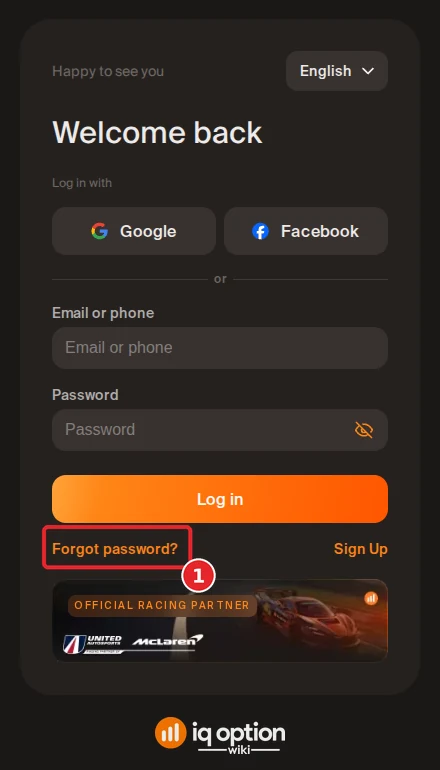
IQ Option login page Welcome back with the Forgot password link below the Log in button
Step 1: the login page (“Welcome back”) with the “Forgot password?” link (1).

Step 2: Type your email and click Continue

The “Password recovery” page says “To proceed with changing your password, please enter your phone or email.” Type the email address of your IQ Option account (1) and click Continue (2). If you leave the field empty, the page marks it “Required field”. We tested an email address only, not a phone number. IQ Option’s help page says the same route: click the “Forgot your password?” link, enter the email address you used for registration, and you receive an email with a link to set a new password.
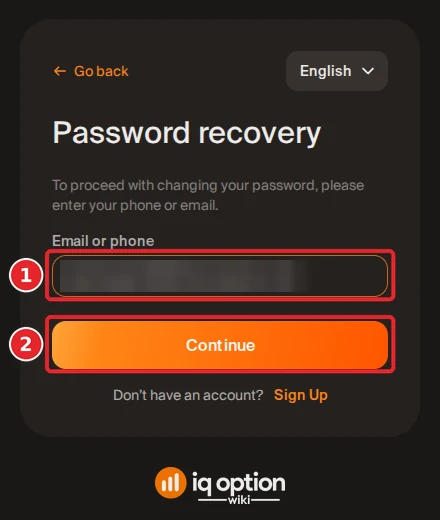
IQ Option Password recovery page with the Email or phone field and the Continue button
Step 2: the Password recovery page: the “Email or phone” field (1) and Continue (2). Our email is blurred.

Step 3: Wait for the confirmation

The page changes to “Your password retrieval information has been sent to your email address” (1), with a Back to Log in button and a countdown “Resend code in 296s” (2). The countdown shows how long IQ Option makes you wait before you can ask again, which is about five minutes.
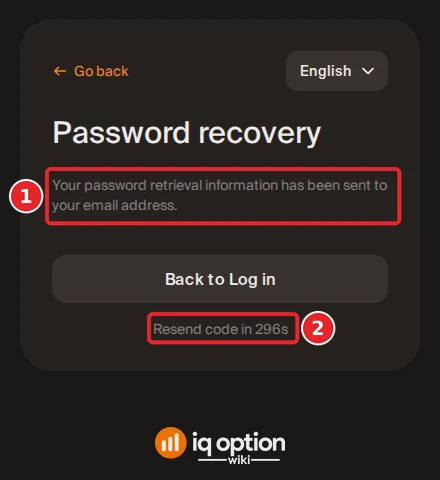
IQ Option Password recovery page saying the retrieval information was sent to the email address, with a resend countdown
Step 3: the confirmation message (1) and the resend countdown (2).

Step 4: Open the email and click RESET PASSWORD

The message arrived in our mailbox within a minute of clicking Continue. It comes from noreply@iqoption.com, is titled “Reset your password”, and says “We have received a request to recover your IQ Option password. To set a new password, simply click below.” Click the green RESET PASSWORD button (1). Next to it the email also prints a short code (“Or use the following code”, 2). We used the button and did not find a place to type the code on IQ Option’s pages, so we cannot say what it is for. The email ends with “If you didn’t ask to recover your password, please ignore this email.”

The button’s link passes through a short redirect on another domain (iqcc.io) and ends on iqoption.com/password-recovering/ followed by a long token. Look at the address bar before you type anything: it must say iqoption.com. If it does not, close the page.
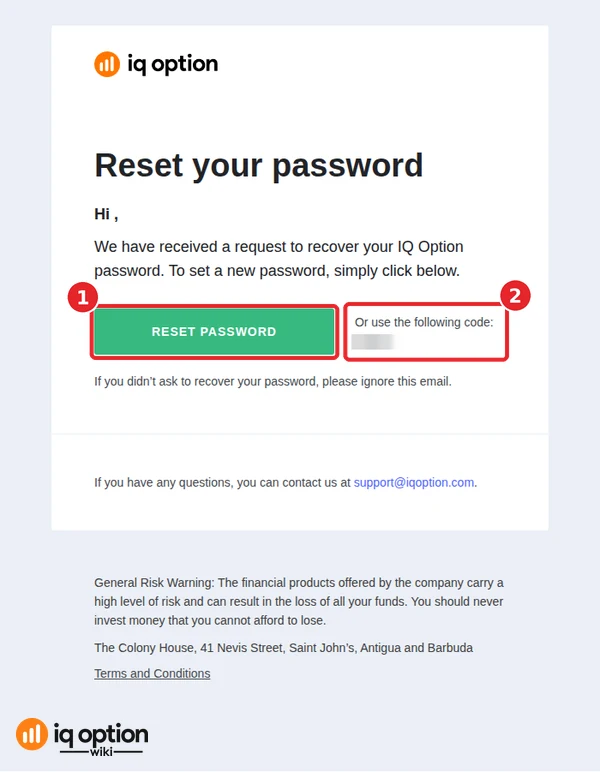
IQ Option Reset your password email with the RESET PASSWORD button and a one-time code
Step 4: IQ Option’s “Reset your password” email: the RESET PASSWORD button (1) and the code (2), which is blurred.

Step 5: Type the new password twice

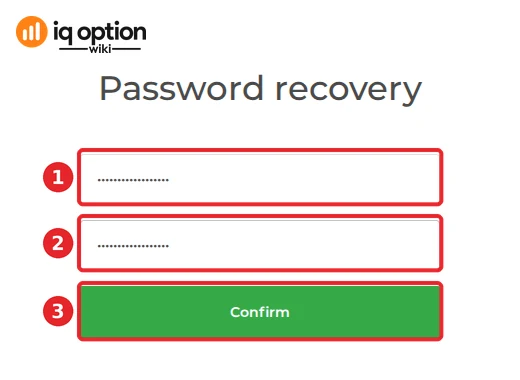
The page “Password recovery” has two fields: “New password” (1) and “Repeat password” (2). Type the same password in both and click Confirm (3). The page does not state password rules, so use a long password that you use nowhere else.
IQ Option Password recovery page with the New password and Repeat password fields and the Confirm button
Step 5: the new password (1), the repeat (2) and the Confirm button (3); the password is hidden by the field.

Step 6: Check that the password changed

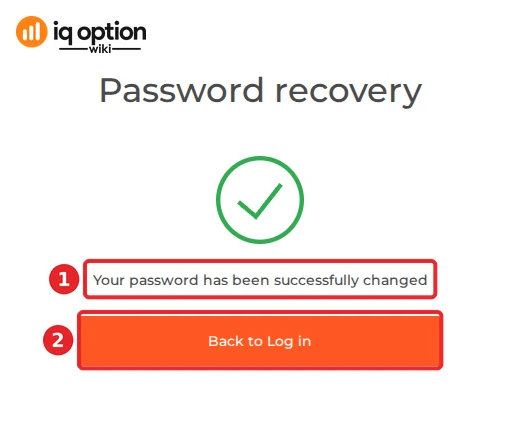
The page shows a green tick and “Your password has been successfully changed” (1). Click “Back to Log in” (2).
IQ Option message Your password has been successfully changed with a Back to Log in button
Step 6: “Your password has been successfully changed” (1) and the Back to Log in button (2).

Step 7: Log in with the new password

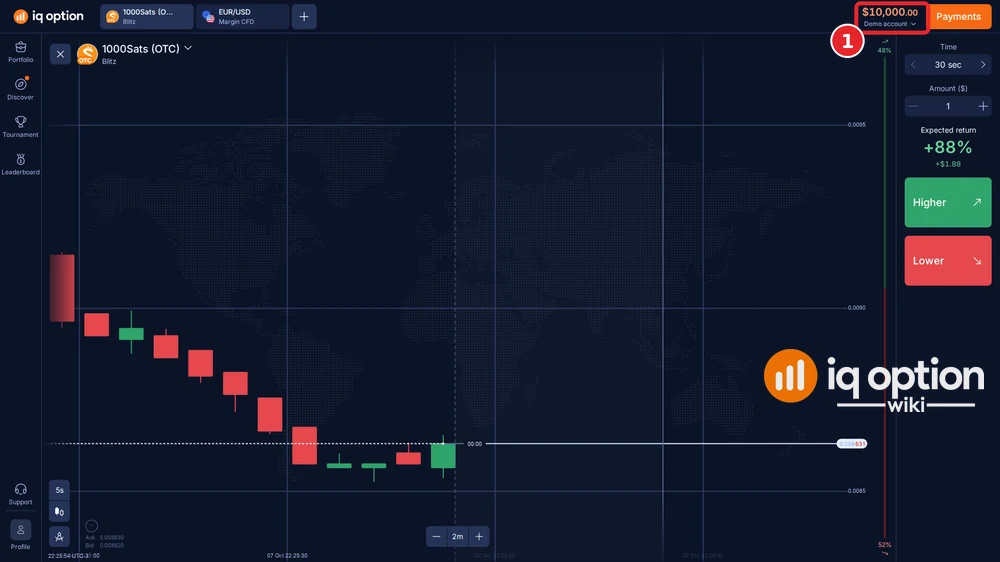
Type your email and the new password on the login page. We did so in a fresh browser and the platform opened on the Demo account balance (1), $10,000.00. The old password is no longer the one to use. The traderoom looked different from the one we saw straight after registering the account (see how to register a Practice account): IQ Option shows more than one layout, and we did not test what decides which one you get.
IQ Option platform after logging in with the new password, showing a Demo account balance of $10,000.00
Step 7: logged in with the new password: the Demo account balance (1).

If the reset does not work

  • No email. Check the spam folder and that you typed the address you registered with. The page lets you ask again after the countdown. If the address is no longer yours, you cannot receive the link: contact IQ Option support (see how to contact IQ Option support).
  • Signed up with Google or Facebook. The login page offers both buttons next to the email form. We did not test recovery for an account registered that way.
  • The page says the identifier is invalid. We saw “You have entered an invalid identifier of the user account” when we submitted the form with no valid email in the field. Type the full address again.
  • You are logged in but cannot trade or withdraw. That is an account question, not a password one: see why an IQ Option account can be blocked and how verification works.

Keep the account safe afterwards

  • Use a password that you use on no other site, and do not send it or the email’s code to anyone. IQ Option’s reset email asks for neither.
  • Open the reset link only from the email you requested; you should have just asked for it.
  • After a reset you did not ask for, check your trading history and profile, and tell IQ Option support.

Related guides

  • How to register a Practice account.
  • Account verification.
  • How to contact IQ Option support.
  • Install the IQ Option app on Windows and Mac.

Frequently Asked Questions

Q: How do I reset my IQ Option password?
A: On the login page click “Forgot password?”, type your email, click Continue, then click RESET PASSWORD in the email IQ Option sends, type a new password twice and click Confirm.

Q: How long does the reset email take?
A: It arrived within a minute in our test. The page shows “Resend code in 296s” before it lets you ask again.

Q: Can I reset the password with a phone number?
A: The form says “enter your phone or email” and the field is labelled “Email or phone”. We tested an email address only.

Q: What is the code in the reset email for?
A: The email prints a short code next to the button. We used the button and found no field for the code on IQ Option’s pages, so we cannot say.

Q: The link in the email goes through another domain. Is that normal?
A: In our test the button’s link went through iqcc.io and ended on iqoption.com/password-recovering/. Always check that the page you type the new password on is on iqoption.com.

Q: Will I be logged out of my other devices?
A: We did not test it, so we cannot say.

Q: I do not have access to my email any more. What now?
A: The reset link goes only to the registered address. Contact IQ Option support, as in our support guide.

Q: Does resetting the password change my Practice or real balance?
A: No change to the balance was visible: our test account showed $10,000.00 on the Demo account before and after the reset.
GENERAL RISK WARNING

The financial products offered by the company carry a high level of risk and can result in the loss of all your funds. You should never invest money that you cannot afford to lose.
Kindly note that this article does not provide any investment advice. The information presented regarding past events or potential future developments is solely an opinion and cannot be guaranteed as factual, including the provided examples. We caution readers accordingly.
Bart Bregman

Written by Bart Bregman

Bart Bregman is a professional day trader and financial analyst with over 10 years of full-time trading experience (since 2014, full-time since 2016). He specializes in Binary Options, CFDs, Forex, Stocks, and Cryptocurrency trading on the IQ Option platform. CREDENTIALS & EXPERTISE: 10+ years professional trading experience 9+ years trading exclusively on IQ Option platform Expert in technical analysis and short-term trading strategies Founder and lead author at IQOptionWiki.com (since 2018) Contributing author at InvestingStockOnline.com and OlympTradeWiki.com Digital nomad trader with proven track record QUALIFICATIONS: Financial Analyst Day Trader specializing in shorter time frames Technical Analysis Expert Documented trading history with real money examples Bart's mission is to educate traders on proven strategies based on his real trading experience. All strategies shared are personally tested and documented with actual trade screenshots and results. Follow Bart's trading journey: LinkedIn: https://www.linkedin.com/in/bart-bregman-038556113/ Instagram: @bart_bregman YouTube: Bart Bregman YouTube Channel Contact: info@iqoptionwiki.com IMPORTANT: All content is based on real trading experience and includes actual screenshots from the IQ Option platform. Bart personally tests every strategy before publishing.

All articles by Bart Bregman · LinkedIn · YouTube · X (Twitter) · Instagram · About IQ Option Wiki

Post navigation

PreviousTrading the Railway Tracks Pattern on IQ Option. Great setup and only 2 candles
Next3 Completely legal IQ Option tricks to disrupt your trading. And 1 simple solution

You may also like

iq option demo account step 3 email form
Post · July 20, 2022

IQ Option Demo Account (2026): How to Register a Practice Account

Last updated: 8 October 2026. Every screenshot below was recorded that day on a new IQ Option account that we registered from a Brazilian connection, with a temporary test mailbox.

Read article →
When IQ Option account is blocked
Post · July 8, 2023

Is your IQ Option account blocked? Here are 6 reasons why

Last updated: 5 October 2026. The reasons below come from IQ Option’s General Terms and Conditions (the version updated on 21 July 2025), which we read on 5 October 2026.

Read article →

Sign up now

  • About us
  • Contact us
  • Sitemap
  • Earnings Disclaimer
  • Privacy Policy
  • Editorial Policy
Cookie policy

© 2026 IQ Option Wiki. All rights reserved.

GENERAL RISK WARNING
The trading products offered by the companies listed on this website carry a high level of risk and can result in the loss of all your funds.
You should never trade money that you cannot afford to lose.

Essential cookies keep the site working; optional cookies need your choice. Not intended for EEA viewers. Binary options are not offered to retail EEA traders.
ACCEPT ALLRejectSettingsCookie Policy
Privacy & Cookies Policy

Privacy Overview

This website uses cookies to improve your experience while you navigate through the website. Out of these cookies, the cookies that are categorized as necessary are stored on your browser as they are as essential for the working of basic functionalities of the website. We also use third-party cookies that help us analyze and understand how you use this website. These cookies will be stored in your browser only with your consent. You also have the option to opt-out of these cookies. But opting out of some of these cookies may have an effect on your browsing experience.
Necessary
Always Enabled
Necessary cookies are absolutely essential for the website to function properly. This category only includes cookies that ensures basic functionalities and security features of the website. These cookies do not store any personal information.
Affiliate signup
The embedded IQ Option form is hosted directly by IQ Broker. It loads so IQ Broker can apply current country availability and affiliate attribution, and may set affiliate and region cookies.
Analytics
Analytics cookies help us understand which pages are useful and how visitors use the site. Google Analytics loads only when this optional category is enabled.
SAVE & ACCEPT
Loading… — —
00040812162024 UTC
Sydney Tokyo London New York Overlap
Full session clock Learn session timing Should I trade now?